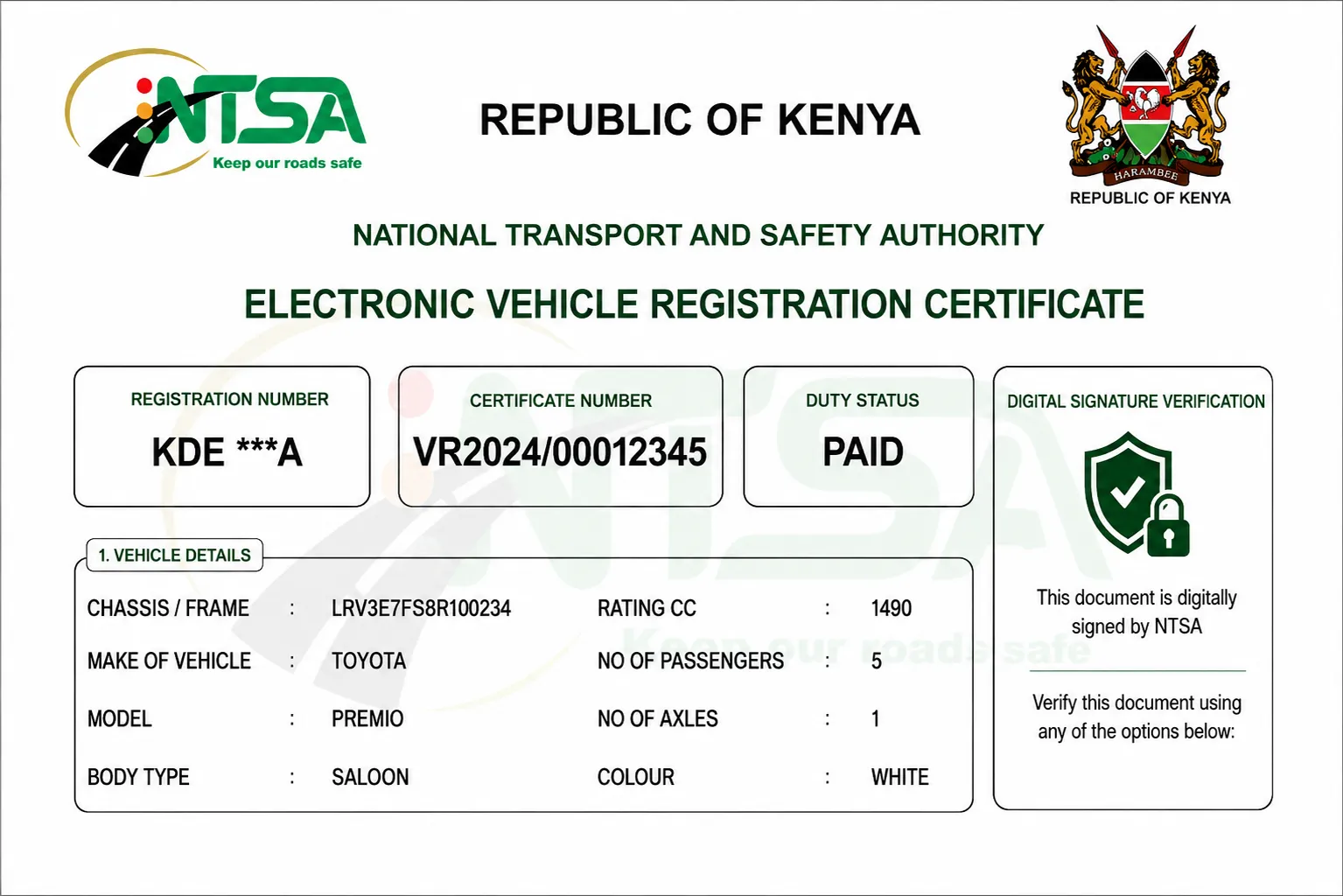
On 10th June 2026, the National Transport and Safety Authority (NTSA) finally bid farewell to the old certificate of registration paperwork and welcomed Kenya to the digital eLogbook era. Moving away from all that - cumbersome paperwork, endless queues, and cartels that have plagued the used car market for years.
However, all those gains bring with them a fresh set of headaches - namely digital forgery, tampering with data and identity theft. Since an eLogbook is essentially a record of a high-value asset, making sure it's authentic before handing over any cash to a seller is an absolute must.
1. The eLogbook's Best Defense : How it keeps fraud at bay
Unlike a paper document that can be all too easily copied with a high-quality printer, the new NTSA eLogbook relies for its security on top-notch digital encryption that can't be tampered with.
Each legitimate eLogbook gets generated the moment you register or transfer ownership, and its stored safely in the NTSA's eCitizen cloud. It's got an embedded QR code that contains a unique dynamic cryptographic key. That means a thief might be able to alter what says on a PDF copy, but they can't alter the real record that shows up when you scan that QR code through the official system.
2. The Verification Process in a nutshell : How to check an eLogbook on your phone
To make verifying an eLogbook as painless as possible for buyers, banks and insurers, NTSA has built a document validation tool straight into its official mobile app.
Here's what you need to do to see if an eLogbook is real :
- Download the Official App (required): Download the free NTSA Services Mobile App from the official Google Play Store or Apple App Store. Do not download APK files from third-party websites or links sent via SMS.
- Secure Login via eCitizen (Identity Check.): Launch the app and log in securely using your own personal eCitizen credentials (Username/ID and Password).
- Navigate to Document Verification: From the app homepage, tap on the Services tab to pull up the system tools, then select Document Verification.
- Initiate Logbook Check: Within the verification sub-menu, tap on Verify Registration Certificate. Your phone's camera will turn on automatically.
- Scan the QR Code: Point your camera at the QR code printed on the vehicle's eLogbook. The system will read the embedded encryption code and extract the real document configuration.
- Execute Verification: Tap the Verify button. The app will fetch the real-time record from the NTSA cloud. Compare the ownership names, engine number, and chassis details displayed on your app screen with the vehicle and paper copy in front of you.
3. The Lowdown on Security from NTSA
As the eLogbook system starts to get rolled out across the country NTSA have put the public on notice about a bunch of sneaky social engineering scams they've spotted - here are the key takeaways:
-
You're On Your Own with eLogbook Access: NTSA officers & third party agents won't be allowed to log in or download an eLogbook for you. To get the digital certificates you need, you'll have to head into your secure eCitizen portal & get them directly from there yourself - it's the only official way to get them.
-
Watch Out for WhatsApp Scams etc: NTSA would never ever ask for your ID number , let alone your logbook details or phone number via WhatsApp , Facebook or even the old X (now Twitter) to "process" or "verify" an eLogbook. Word of warning.
-
New Logbooks Mean New Rules : Old logbooks are still good to go if they were issued before June 2026 , but from now on every transaction needs a shiny new digital eLogbook. If some dodgy seller is flogging a brand new paper logbook without a QR code , trust your instincts - that's a fake.
4. Summary Checklist for Car Buyers
| Verification Step |
Safe Indicator |
Red Flag |
| Document Source |
Downloaded directly from the seller's eCitizen account. |
Provided as a printed photocopy by a third-party broker. |
| QR Scan Result |
Pulls up identical data matching the car on the official NTSA App. |
Fails to scan, or directs you to a strange web URL instead of the app database. |
| Vehicle Details |
Engine and Chassis match the app screen perfectly. |
Minor "typos" or discrepancies in the chassis stamping vs. digital record. |
| Lien Status |
App shows clear ownership or explicit asset financing bank. |
Hidden financial tracking or conflicting ownership claims. |
Pro-Tip: If you require a complete, legally binding history of the motor vehicle—including historical ownership and active bank caveats—do not rely solely on the QR scan. You should still log in to the eCitizen portal and pay for an official Official Motor Vehicle Search under Section 5 of the Traffic Act.